![mousemat.png]](https://fundamentals.theretailscore.com/hs-fs/hubfs/mousemat.png?height=40&name=mousemat.png)
Prerequisites -
To gain access to Automated Reports, you will require Admin Portal access (Wrench Icon)
(please ping support@theretailscore.com to be granted access to your Admin Portal - Automated Report)

Automated Reports Homepage
From the AR home page, there are two lists that can be used to manage your automated reports, Live and Report Definitions (see Figure 2)
Live
Live shows your current reports in their most up-to-date state.
- These are the 'final' version of your reports that will send if enabled or can be paused by disabling.
From this Live list, you can only enable/disable or resend a failed report.
Report Definitions
Report definitions is the list designed for testing and updating any and all changes to a report.
When making changes to reports they must be saved via the save button in the top right-hand corner, once saved they will push the Report Definition into the Live list.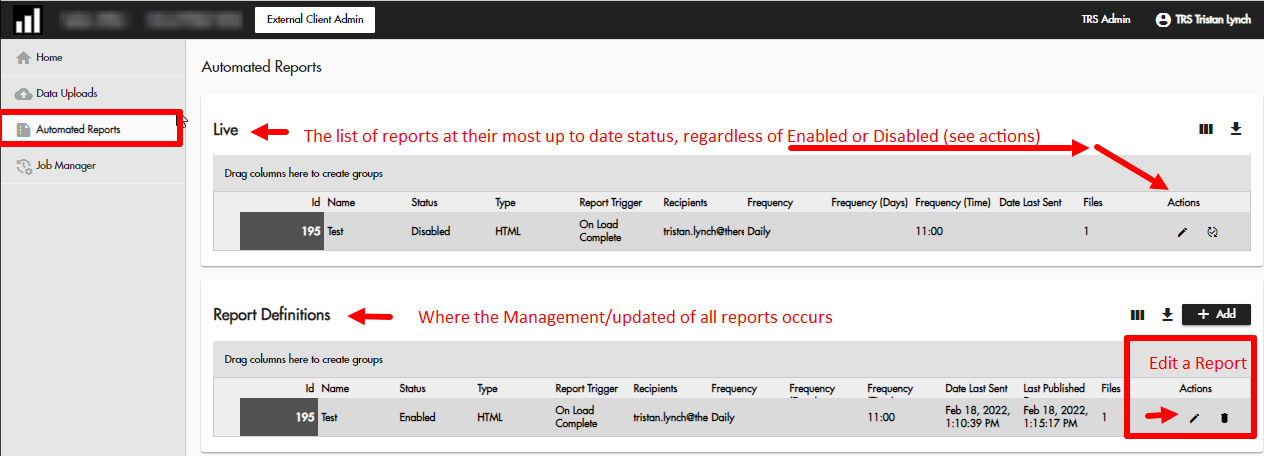
(Figure 2)
Managing Automated Reports
When managing automated reports, there are two key types of changes that can be made, these being Major or Minor updates to the report.
A Major Change
If a major change is made to a report, it will need to be submitted for testing.
Major changes include;
- Updating the attached File
- Updating the Subject or Email Body
Upon saving the report, the system will prompt the user for testing, which will send a test email to the user's email address linked to the logged-in account.
- The test report will be sent through to the user's email once successfully run.
- Simply review the document in your email inbox, and click approve to activate your report.
Why has my report not come through yet?
Most reports should come through within a couple of minutes, however, larger reports will require time to refresh, and will be shown as 'in testing' via the report definitions list view.
If all else fails please contact support@theretailscore.com
A Minor Change
A minor change is any other adjustment that does not affect the structure of the report, such as;
- Adding new recipients
- Updating the scheduled time.
Tips for managing automated reports
To add multiple users to a distribution list upload the string of emails delimited by a semi-colon with no spaces and press enter, see example.
email1@example;email2@example;email3@example
For more information, please see the below Links.