![mousemat.png]](https://fundamentals.theretailscore.com/hs-fs/hubfs/mousemat.png?height=40&name=mousemat.png)
Automated Reports
Automated reports are used to
- Automatically refresh workbooks that are consistently required on a day-to-day basis and are unable to be supported by the insights portal or are large in size and refresh time, requiring 30+ minutes to refresh.
Use cases
- Send Email -
Automated Reports that automatically refresh the attached workbook and send it as an email to team members, this is used to support daily sales reports that are sent to the wider company (non-pivot users). - Send to Portal -
Automated reports that automatically refresh the report in your insights portal for quick download. This is used to support custom and advanced pivot reports that are unable to be re-created in the Insights Portal.
Automated Report Types
Both Use Cases use a master excel file to support one of the following report types,
(PDF, HTML,Excel, CSV)
- PDF - Saves the entire Excel (all tabs + "views") in PDF format and attaches it to the Email
- HTML - Saves the 'email tab' of the Excel ("EMAIL" tab + "views") in HTLM Format and sends as the body of the Email
- Excel - Saves the entire Excel (as is) in XLXS format and attaches it to the Email
- CSV - Saves the entire Excel (as is) in CSV format and attaches to the Email
*Views - refers to the excel tab view, which formats the printable area of a workbook.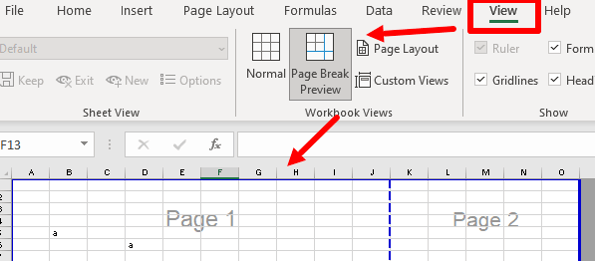
Setup Requirements
Requirements for setting up an automated report.
- A Usecase Scenario that matches the criteria.
- Excel workbook with the master report
- Emailing list of users to send the file to (if email)
- Admin Portal Access (email support@theretailscore.com for access)
Helpful next steps