![mousemat.png]](https://fundamentals.theretailscore.com/hs-fs/hubfs/mousemat.png?height=40&name=mousemat.png)
About Report Views
Finance Teams often have very specific reports they have to build and update each month such as a Summary or Detailed PL, the Balance Sheet and many more reports. These reports have specific rows and columns and even a specific order to the rows and columns.
GL Report Views enables custom financial reports to be set up and automated using a combination of the GL Transactions or Movement data, GL Account Codes and Cost Centres.
Pre-requisites
- You will need to be set up with access to your tRS Admin site.
- You must be subscribing to the tRS GL Module
- Your Account Master File needs to be set up in tRS Admin as an upload file
- Your Cost Centre Master File needs to be set up in tRS Admin as an upload file
- The GL Report Views Template needs to be set up in tRS Admin as an upload file
Tip: To know if you have been set up with tRS Admin access you will see a "wrench" icon to the right on the top ribbon of your trs insights portal.

To request access - please email us at support@theretailscore.com
How to set up your Report View
Step 1 Download the last successful upload of your GL Report View Template from tRS Admin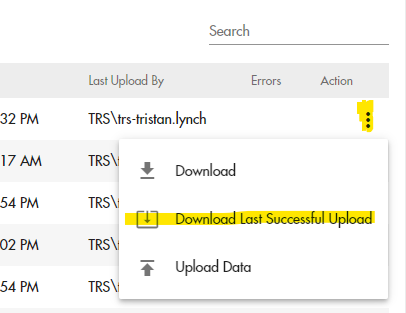
Step 2: From the report template, take note of the columns you will need to fill in
-
- Key: This should be filled in as "Default"
- Report_No: This is the Report Number eg (1,2,3,4 etc)
- Report_Name: This is the Name of the report as it will appear in your tRS Pivots.
- Report_Row_Sort: This is the sort number and controls the order of the rows.
- Report_Row_Filter_Field: This is the label of the row as it will appear in your report.
Tip: it is a good idea to use spaces before the display name to indent these in your report
- Report_Row_Filter_Field: This is the column referenced in the Account Master File.
- Report_Row_Filter_Value: This is the exact match of CELL in the referenced column in the Account Master File. Please see the note below.
- Report_Row_CostCentre_Filter_Field: This is the column referenced from the Cost Centre Master File - if no cost centre is used, leave this blank.
- Report_Row_CostCentre_Filter_Value: This is the exact match of CELL in the referenced column in the Cost Centre Master File. Please see the note below.
Warning: When populating the Report_Row_Filter_Field and Report_Row_Filter_Value columns, you must use an exact match, ie/ copy and paste from the master files to ensure it is an exact match otherwise the Report View can not map the row into the report.
- Report_Row_Style: This controls the formatting applied when the report is displayed as a web report in the tRS Portal. The following options are supported:Report_Row_Multiplier: This controls how you want the number to display as standard financial systems report income as negative and outgoings as positive, this enables you to change that in the final report by using either -1 or 1.
- No formatting - leave blank
- TRS_Shade
- TRS_Shade_Bold
- TRS_Shade_Bold_Bordered

-
- Log into your tRS Admin
- Go to external uploads and the Report Structures or Report Views file
- Click on the three vertical dots and upload the file
- If you get stuck, please email support@theretailscore.com
Please note that once you have successfully uploaded your Report Views, this will appear in your tRS data warehouse and portal (if set up) the following morning.