![mousemat.png]](https://fundamentals.theretailscore.com/hs-fs/hubfs/mousemat.png?height=40&name=mousemat.png)
Resetting Password
WARNING -
- Non-tRS Domains should not reset their password (discuss with your external IT team if any access issues arise)
- Cube/P4P users MUST update, ALL tRS Manage Windows Credentials after successful reset of password.
See Connecting to Pivots For Guidance
Resetting a tRS password is a quick 2 step process.
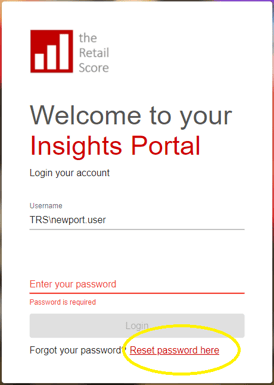
From the main Insights Portal Login page, https://portal.theretailscore.com/login
- Choose "Reset Password Here"
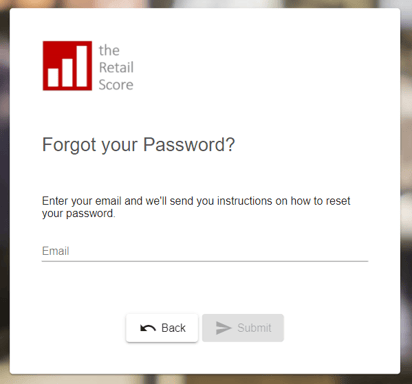
- Users will be prompted to insert their email address
- An email will be sent to the user's connected email account
Caution - Requirements for successful Password
The password must meet the system's minimum-security requirements as follows.
*Password must not be similar to your name/email
*Password must not be similar to your last password change
*Password must have a minimum of 8 characters max 28, including at least 1 uppercase, 1 lowercase, 1 numeric digit, or 1 special character
Re-Connecting to the Cube/Pivots !Mandatory Requirement!
- Log in to the Insights Portal with your new password
- If unsuccessful please try to reset your password again or ping support@theretailscore.com
- Navigate to the P4P instructions under the
 icon once in the Insights Portal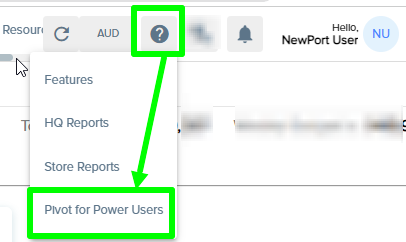
- Follow the outlined steps in the P4P Instructions and update your password where required.
- Specifically - Step 1 (2-4 Updating your Manage windows credentials)
(example from Pivot for Power Users connection page)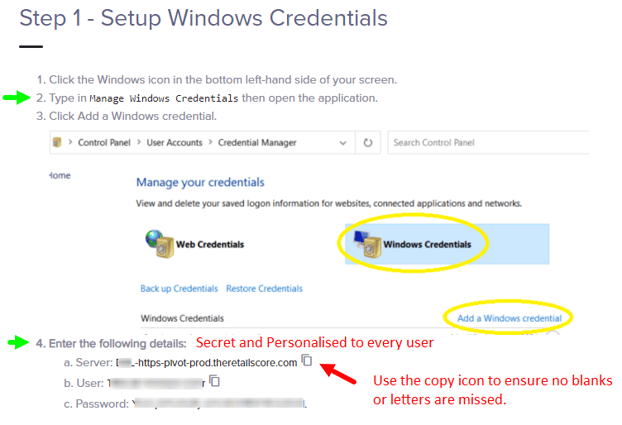
- Specifically - Step 1 (2-4 Updating your Manage windows credentials)