![mousemat.png]](https://fundamentals.theretailscore.com/hs-fs/hubfs/mousemat.png?height=40&name=mousemat.png)
The Steps
1. From your Store Insights Portal, select the store you are inputting time sheet detail for
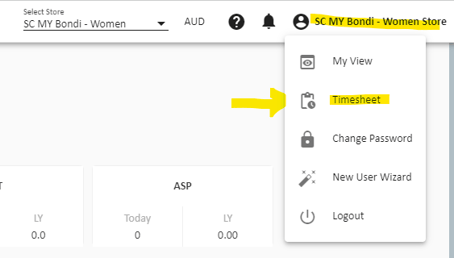
2. Click on the store name on the top right ribbon and select Timesheet
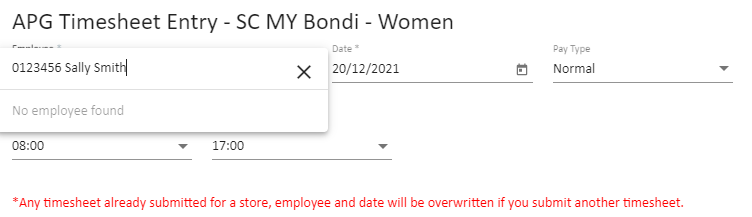
3. Search for the team member using the Employee Code Name dropdown
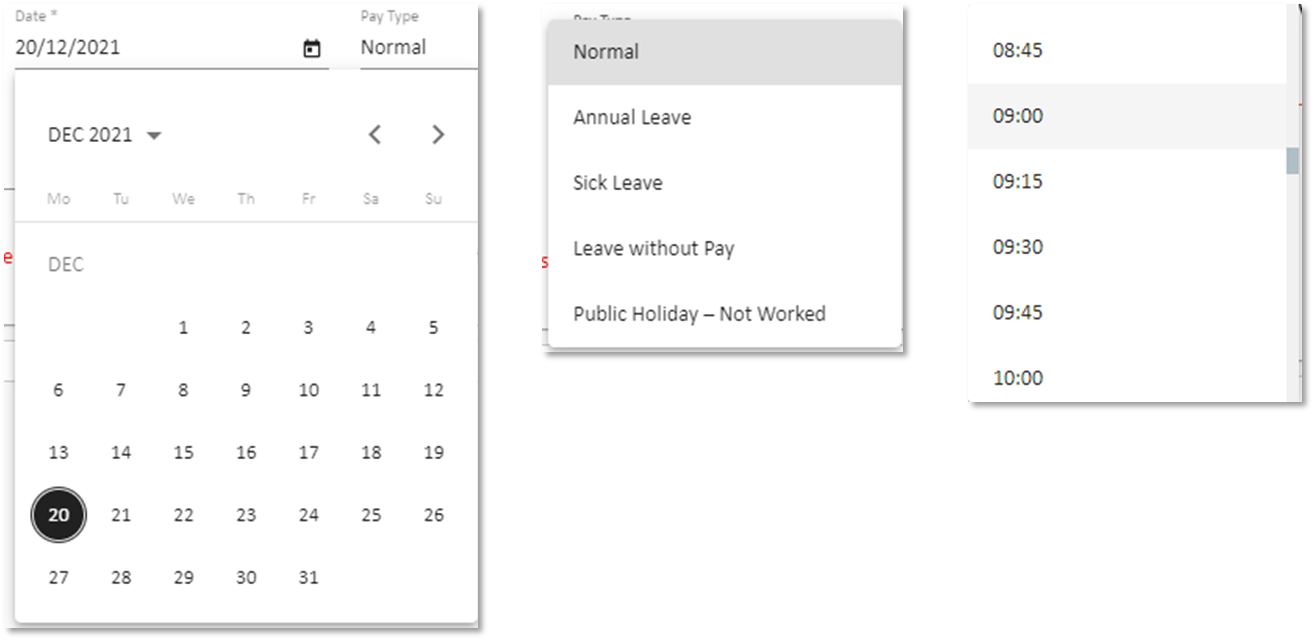
4. Select the date, Pay type and Shift Start and End Time from the dropdown selections
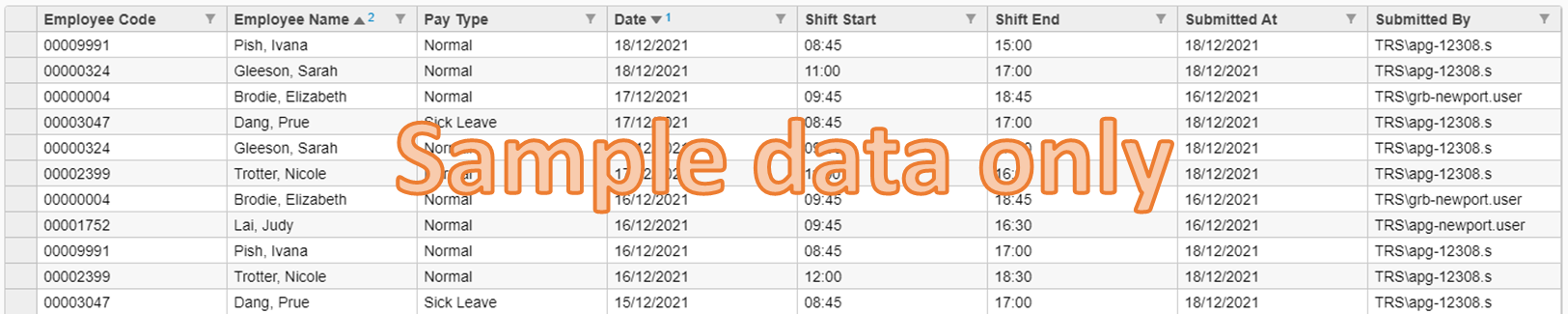
5.Press the submit button to see the shifts tabled below

As you input details for your location, the table will appear below with the submitted results
Some Hand Tips
1. The Timesheet input option is only visible to store log-ins
2. The Employee code is a searchable employee list by name or employee code
3. Error trapping stops shifts being submitted with a Start before the End time
4. Successful inputted sheets are stored in a filterable table below the input form
What if you made a mistake?
Any ‘shift’ that has been inputted with the same name, date, type will be over-riden
To Clear a shift, choose the date and employee and set the start and end date to 0:00 and –No Break
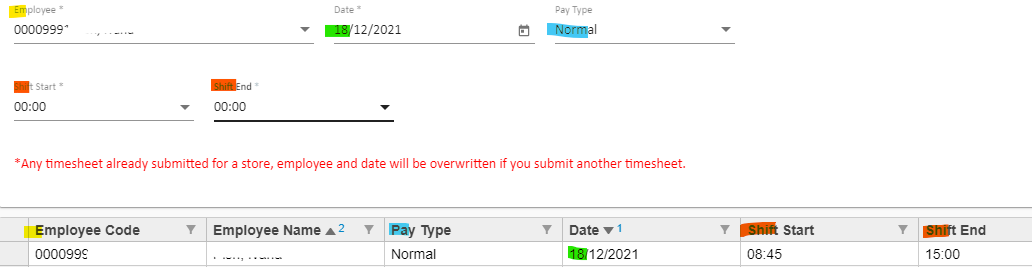
Make sure you line up the Employee, Date, Type to the record you need to clear and set the start and end time to 00:00