![mousemat.png]](https://fundamentals.theretailscore.com/hs-fs/hubfs/mousemat.png?height=40&name=mousemat.png)
TRS have limited PivotTable running times to approx. 5 minutes. This should satisfy most requirements but may mean that some consideration need to be applied when creating your pivot report.
Factors that may cause inefficiencies in pivot creation
If you were to drop in an attribute with many lines in it eg. member code or style codes, without a value being selected, the pivot table will bring in every line from the database.
If you were to add a calendar filter but not select a value, the same applies - every line in the database applicable to the attribute selected will be displayed.
If you were to add in multiple values and attributes without filtering the data to a time period, the data will be trying to pull all history in the cube for the multiple data sets selected.
As a result, it can either cause your report to time out or take a very long time to refresh every time you want to add another attribute or value.
Best Practice
- Bring a value into your report early in the report creation stage - even if it is only one value to start with.
- filter to a time period
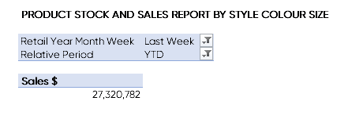
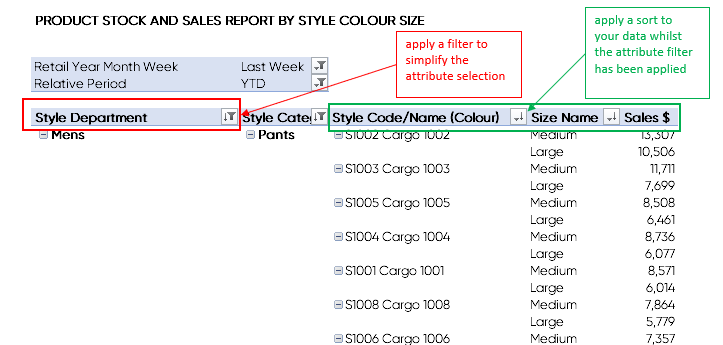
- Bring in various attributes required and filter to one option (red below)
- this makes for quicker run times when adding new fields to the pivot.
- Apply any sorts or data filters to your report (green below)
- Add in all the required values.
- Once you have created your report, expand it to remove any temporary filters and complete the report.
If you have a report that requires a longer run time, please click this link xx for details regarding the concierge service.