![mousemat.png]](https://fundamentals.theretailscore.com/hs-fs/hubfs/mousemat.png?height=40&name=mousemat.png)
Pre-requisites
TRS will provide the Customer with two email addresses. Please note that both of the below accounts only need read access to Google Analytics.
- admin@theretailscore.com: This email will allow TRS to see the Customer dashboard and Get the necessary View ID’s that are requested to be brought into the cube.
- <Google Service Account Email>: This will be generated by TRS when setting up Google Analytics imports. This is the account that will read the data and import it into TRS.
Customer - Granting Google Analytics Permissions
To setup Google Permissions:

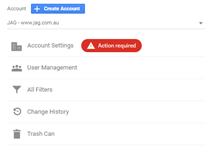
- Click Admin, and navigate to
- In the Account column click User Management.
- In the Account users list, click +, then click Add new users.
- Enter the email address for the user's Google Account. As Supplied by TRS
- Select Notify new users by email to send a message to the user.
- Select the permissions you want. Grant Read & Analyze.
- Click Add.
Reporting
Customer – Google Account Info
For any process wanting to access the Google Reporting API they will need 3 things
- Security Key – as explained above
- Account ID
- View ID
As TRS has been given Access to the Customer Google Analytics page we will be able to see what accounts and views the customer has. However, if there are multiple views the Customer will need to confirm what views they want data extracted from.
Note: Please note that the view must line up with a location ID from the tRS database eg. If the Google View is NZ Webstore, then find the Location ID in the tRS platform for NZ Webstore eg “485” and inform tRS via an email to support@theretailscore.com . Image example is using Originating Location but the same could be done from your Location table from tRS.
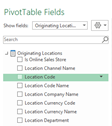
If you are unsure how to find your Account and View ID follow the below steps.
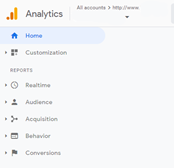
The Account and View ID can be found by navigating to the top left of the page where the Analytics Logo sits. To the right of this will be a dropdown selection which allows you to quickly navigate through all accounts your user has access to.
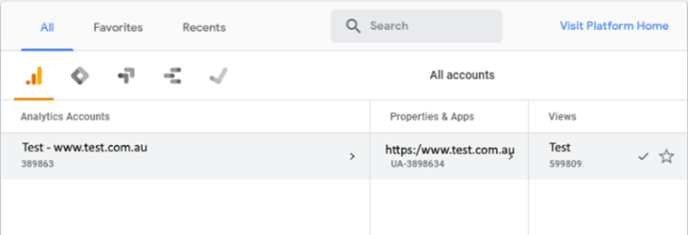
Each user should have 3 parts Analytics Accounts, Properties & Apps and Views.
If you get stuck with the above, send an email to support@theretailscore.com
Base Service Inclusions
FYI - The following information is included in the base tRS Google Analytics Service.
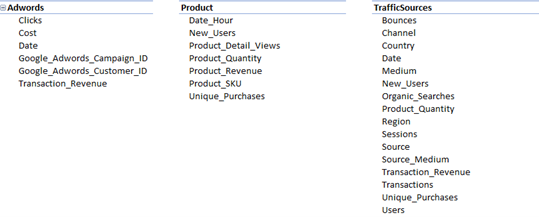
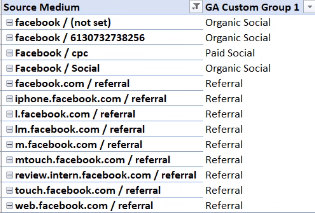
In addition to the metrics above, an Excel Classifications upload file is available to help you cleanse, attribute and manage Google’s Source/Medium. For example, Facebook might have several spelling variations which makes reporting and analysis a challenge, you can use the tRS facility to upload a clean reference categorising into single spelling and more relevant groups such as Social vs Referral.
Additional Customisation (optional with extra fees and time may apply)
Additional customisation maybe required to fulfil your Google Analytics Integration needs. In order for TRS to review and quote for the additional extract you will need to provide the Dimensions and Metrics to support@theretailscore.com .
To help with the process of deciding what might be required, please use the following;
https://ga-dev-tools.web.app/dimensions-metrics-explorer/
An important note is that not all Metrics can be used with all Dimensions. They are specific combinations that can be used.
Once you have decided what you would like extracted, email the details to support@theretailscore.com. And we will validate if it can be done and quote for this work.