![mousemat.png]](https://fundamentals.theretailscore.com/hs-fs/hubfs/mousemat.png?height=40&name=mousemat.png)
PRE REQUISITE
Please note that you will first need to be permissioned with the application first by contacting the support team at the Retail Score via email
support@theretailscore.com
The portal pages you have access to via your laptop will need to be enabled for mobile viewing first. The default and base mobile application covers the following reports
- Dashboard
- Mobile Headlines
- Product Gallery
- More can be requested through the Support Desk [support@theretailscore.com]
Overview
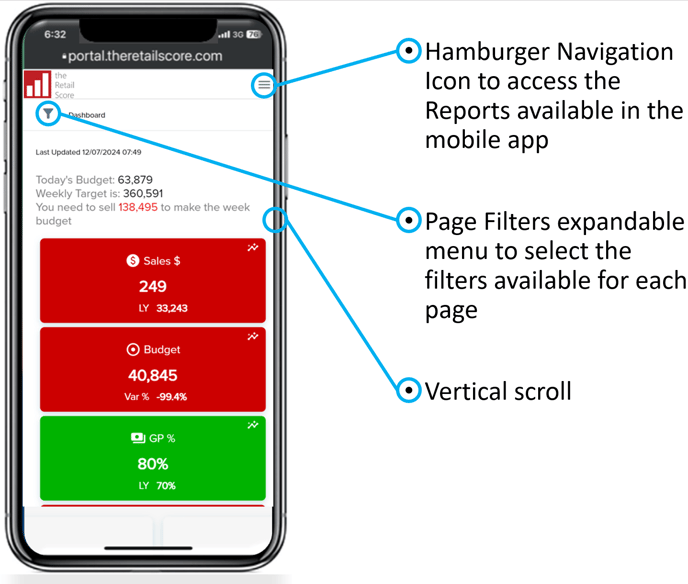
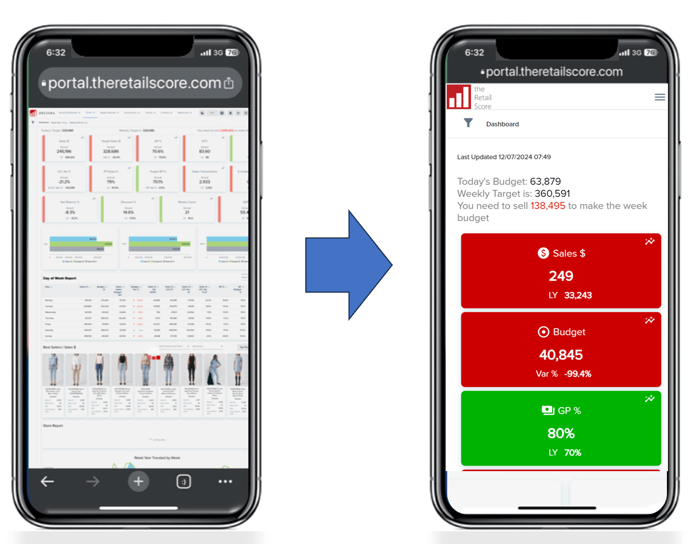
tRS Mobile is a web based application that changes the navigation and display of content to support smaller screens such as mobile phones. It is supported on both Android and Apple devices.
Summary Steps
The following are required to complete the set up access to your tRS Mobile App.
- Portal Login via your laptop
- Access the App installer
- Apple (Add to home screen) or Android (Install the App on your phone)
- Embed your credentials into your phone
- Access and Navigate to your reports
Step 1 - Portal Login
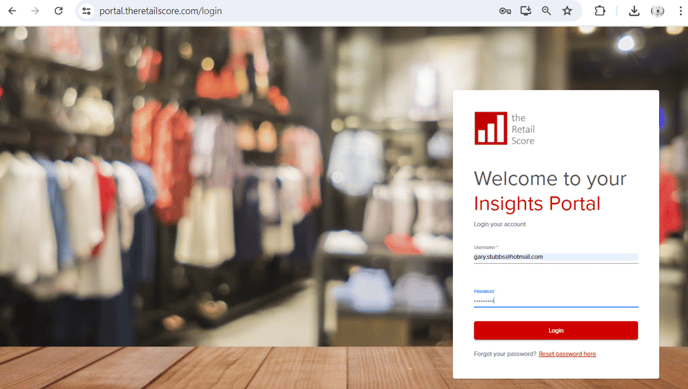
Log into your tRS Portal via your laptop or PC
Step 2 - Access the App Setup
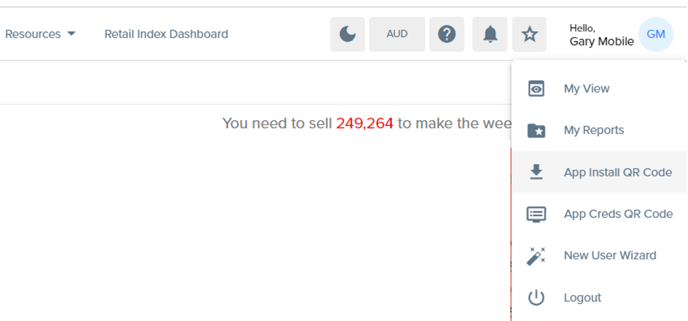
Click on your name to show the drop down and select the option
App Access QR Code
Input your work email registered with the tRS Application
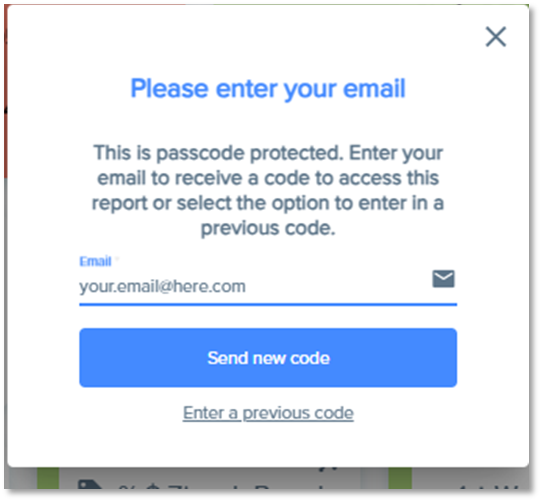
Please note that if your email is not registered with tRS then you will receive an notification to contact support@theretailscore.com
Check your email for the code
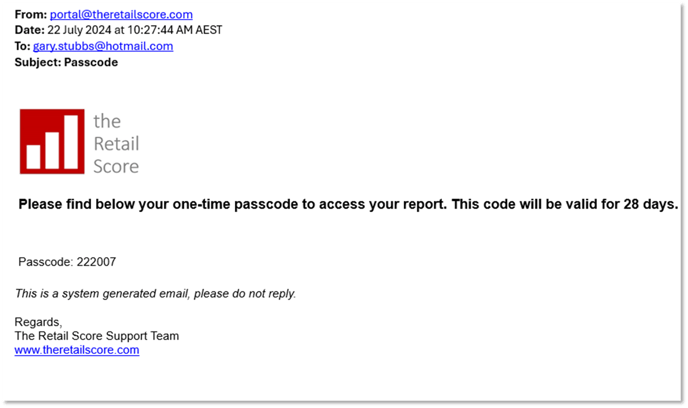
Enter the code you were sent via your work email account
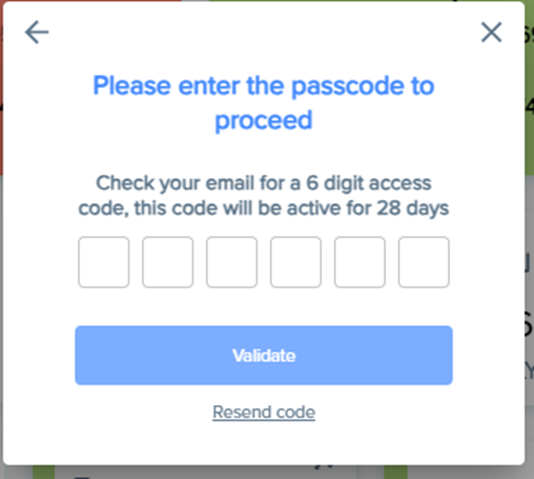
Please note that if your email is not registered with tRS then you will receive an notification to contact support@theretailscore.com
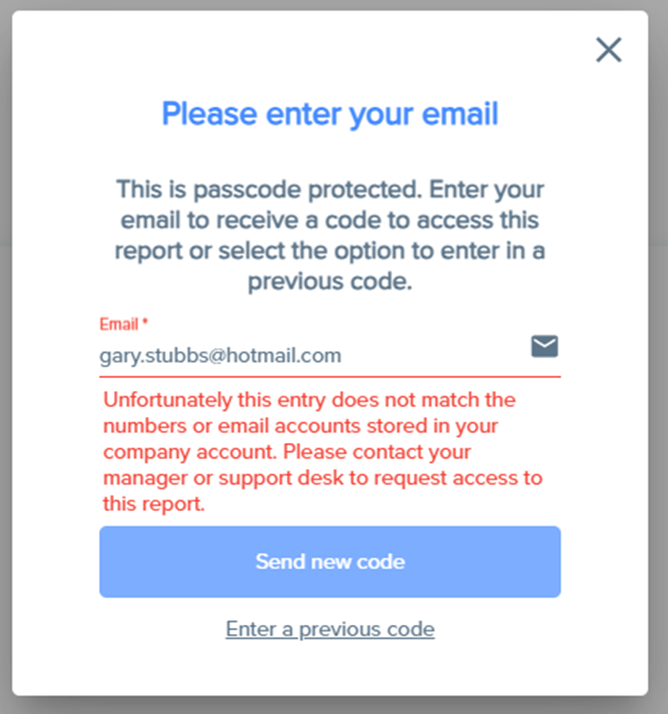
See example below:
Check and reenter your email or check with the tRS Support Team (email to support@theretailscore.com) to ensure your email is set up on the system for mobile access if the following error appears.
Step 3 - Install the App on your phone
Please note that there is a different set up step for Android vs Apple Devices.
In Summary
- Android Users will use Chrome and click on the CONTINUE button
- Apple Users will use Safari and SCROLL down to select the Share ICON to Add to Home Screen
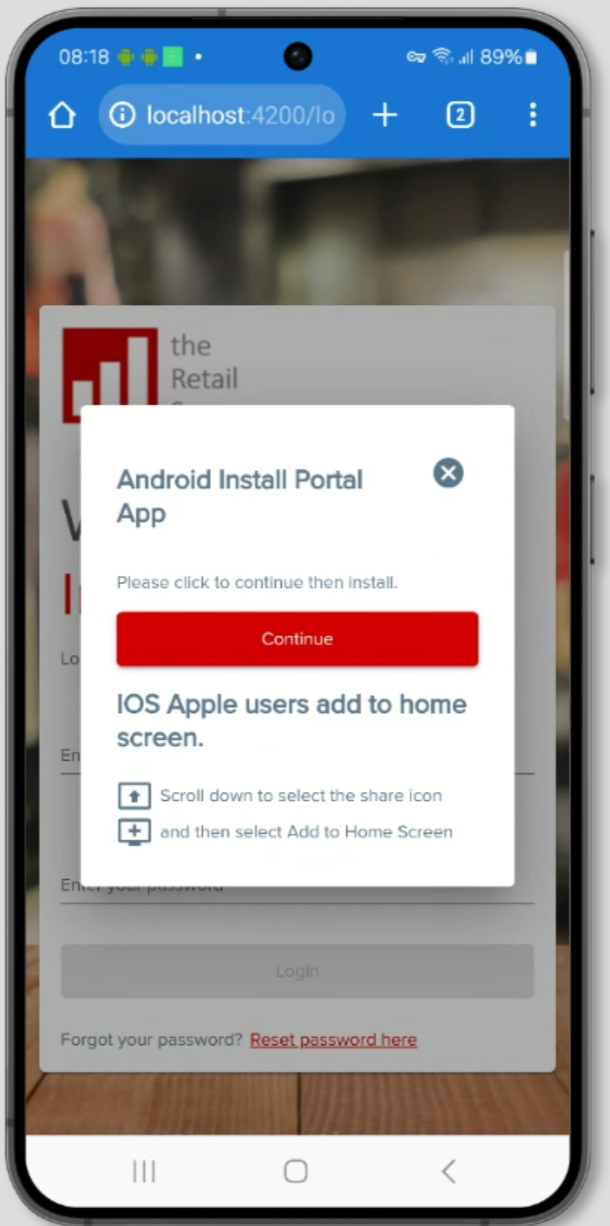
3.A Apple Users
 |
Please note
|
3.B Android Users
 |
Please note
|
Step 4 - Embed your credentials into your phone
From the portal click on your name and select
App Creds QR Code
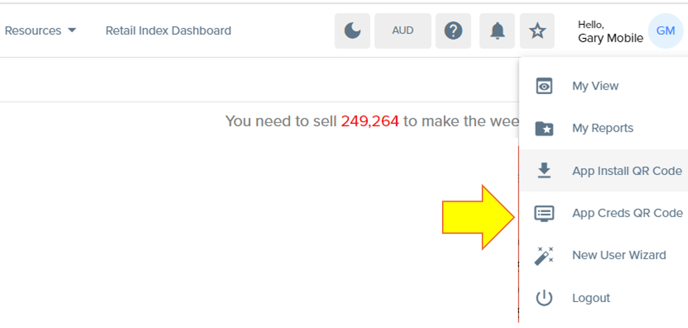
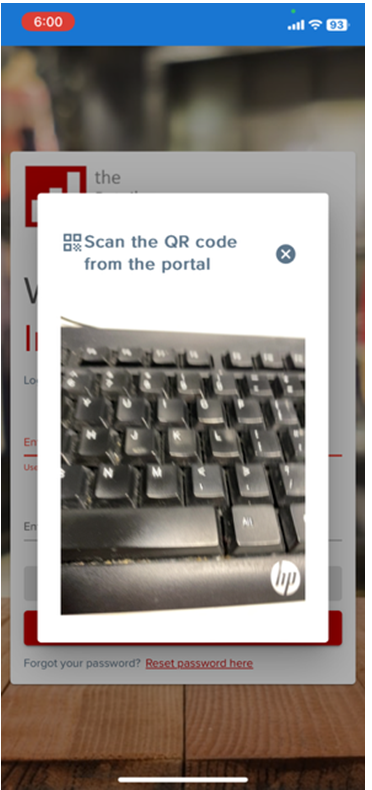
Then point the camera to capture the qr code on your PC or laptop screen
Step 5 - Access and Navigate to your reports
Access the app