![mousemat.png]](https://fundamentals.theretailscore.com/hs-fs/hubfs/mousemat.png?height=40&name=mousemat.png)
About
Custom location attributes can provide a valuable way of adding value to your reporting and analysis that may not be loaded into or not supported by your ERP. A good example is the lease details of a location, size of the location (sqm), area manager, longitude & latitude or any other location attribute.
Please note: Custom location attributes are maintained in an Excel workbook called Location Classification file and are mapped and integrated by Location Code.
Location Classification Template
Your location classification file must be formatted and maintained in a specific structure to be uploaded into your tRS service and this is best done in MS Excel.
When preparing your Location Classification Template, the final template with look like this
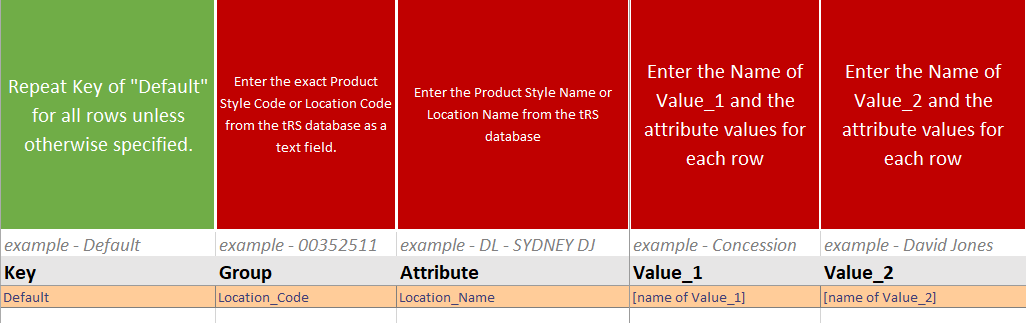
The Location Classification file supports upto 10 columns
The columns are optional so unused columns should be left blank
And will have the following column headings.
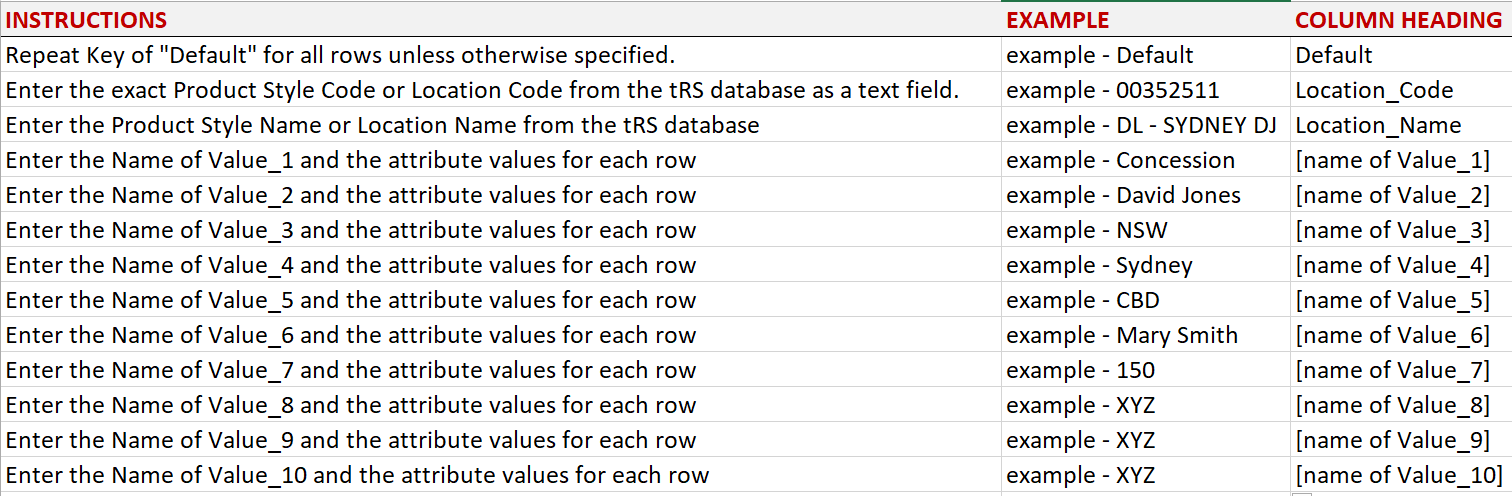
In summary, location code from your tRS data warehouse is in the rows with the custom attributes 1 to 10 as columns.
PLEASE NOTE:
1. When new locations are added to your ERP and loaded into your tRS service, a notification email will be sent to alert the team that an additional location code has been added and will need to be coded up for the used classification columns.
2. Once your file has been set up by the tRS team, you will need to maintain it,
Please click here to see the instructions to maintain your classification file.